 Bijay
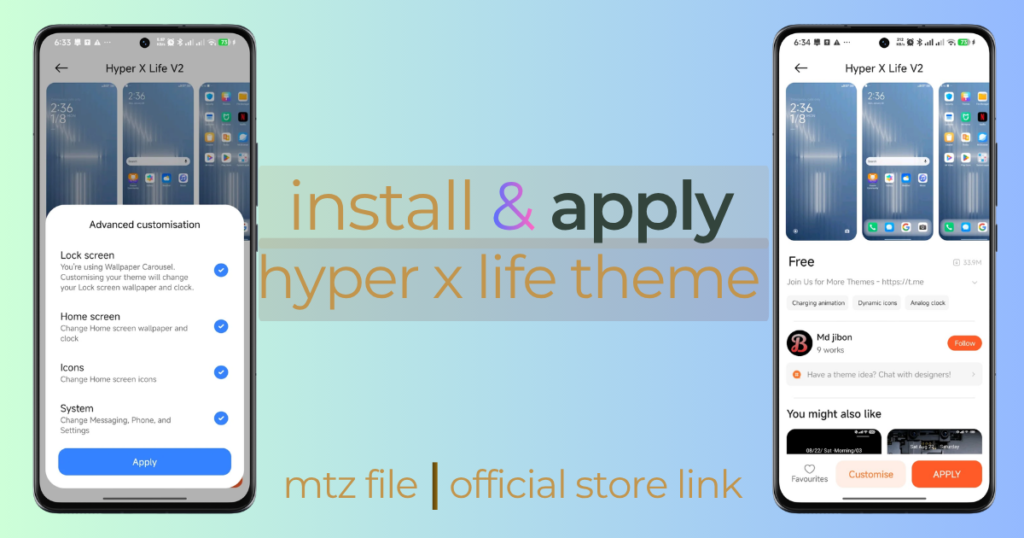
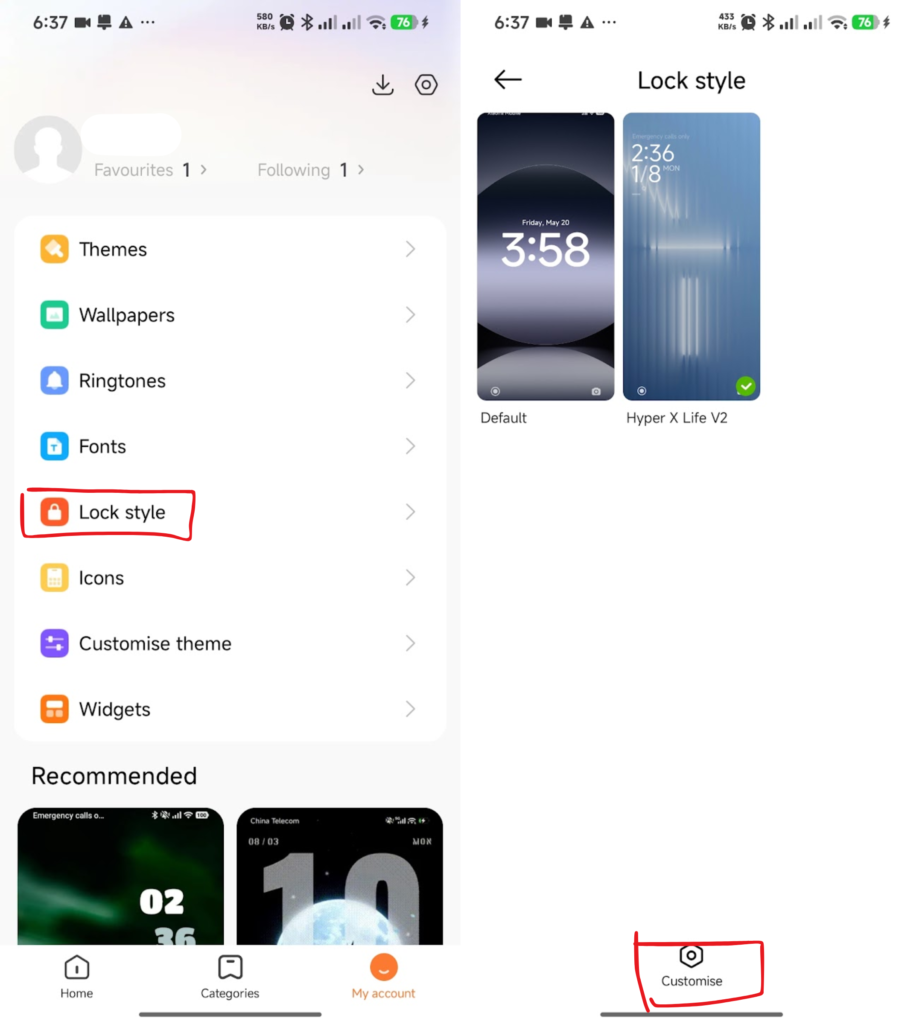
If Hyper X Life V2 is already on your phone, open Themes > My account > Lock style, select it and tap Customise at the bottom. This opens the theme’s own settings for the wallpaper, clock and unlock-screen controls.
I’ve kept V2 on my Redmi Note 14 5G Global ROM for about a month. My screenshots show it selected with a green check mark and the settings I have available. I’m also enrolled in Mi Pilot, so your menus may differ if you’re on another software build. Where a setting includes a note from the theme’s creator, I explain that note below.
If you haven’t downloaded V2 yet, start with the next section. For screenshots of the finished setup and my impressions after a month, see the Hyper X Life V2 review.
How to install Hyper X Life V2 from Xiaomi Themes
Open the Themes app and search for Hyper X Life V2. Before downloading, compare the preview and designer name with the V2 listing on MIUI Themer, which credits Md jibon.
1. Open the matching theme result.
2. Check the price, compatibility information and any download conditions shown there.
3. Tap the download button and let the download finish. Sign in if Themes asks you to.
4. Tap Apply. If component choices appear, select the parts you want, including Lock screen or Lock style for V2’s lock screen.
5. Lock the phone and wake it again to see the result.
Keep your previous theme in the downloaded collection. It gives you an easy way back if you prefer your old layout.
These are the standard store steps. My reference images show V2 after installation, so the exact download button or prompt on your phone may look different. Xiaomi’s theme setup instructions also describe choosing which supported components to apply.
Apply a theme you have already downloaded
You don’t need to search the store again. Go to Themes > My account > Themes, open Hyper X Life V2 and tap Apply.
For just the lock screen, open My account > Lock style instead. Select V2 and apply it. In my screenshot, the green check mark is on V2, with Default beside it as the other available choice.
Installing Hyper X Life V2 from an MTZ file
An MTZ file is a theme package. Before downloading one, look for an Import option in your Themes app. The screenshots here don’t confirm MTZ import support on my Global ROM.
If your app offers Import:
1. Download the correct V2 MTZ package from a source you trust.
2. Open Themes, choose Import and select the downloaded file.
3. Wait for the theme to appear in your collection.
4. Open it and tap Apply.
If there is no Import option, use the store version when available. A separate installer needs its own instructions for your ROM; the steps above only cover native importing. Renaming a file won’t add an import feature to Themes.
How to open the Hyper X Life V2 customization menu
The important button is at the bottom of Lock style. It’s easy to focus on the large preview and miss the smaller Customise control beneath it.
1. Open Themes and tap My account.
2. Choose Lock style.
3. Make sure Hyper X Life V2 is selected.
4. Tap Customise at the bottom.
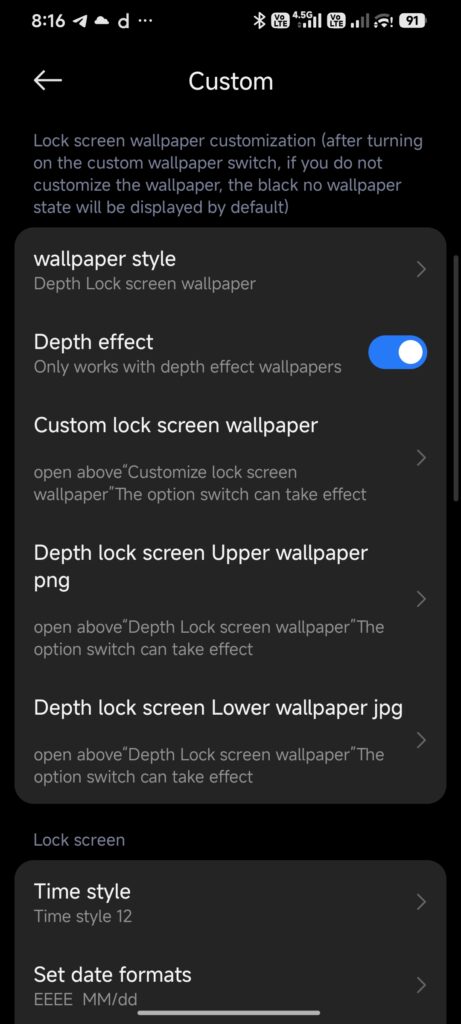
You should reach a page titled Custom. The wallpaper options come first, followed by the clock settings and a section called Bottom tip.
Some Themes versions group these controls under Profile > Customize Theme > Lock Style. My screenshots use My account and the spelling Customise.
Pro Tip: If you only like the Hyper X Life V2 lock screen, open the Themes app, navigate to Profile > Customize Theme, and apply only the Lock Style component while retaining your stock HyperOS icon pack.
Change the lock screen wallpaper
Open wallpaper style in the Custom menu. Mine shows Depth Lock screen Wallpaper. Choose the style you want, then use the image controls for that style.
Read the short note above these controls before enabling a custom wallpaper. It says that turning on custom wallpaper without choosing an image can leave you with a black background. Select your image before checking the lock screen.
Set up a depth wallpaper
The depth layout has two image entries: Depth lock screen Upper wallpaper png and Depth lock screen Lower wallpaper jpg. They let you supply separate layers. A matching PNG foreground and JPG background are the usual starting point for this kind of layout; the screenshot doesn’t show the image-selection process itself.
The Depth effect switch includes a useful limitation: it only works with depth-effect wallpapers. Turning it on won’t necessarily make an ordinary photo overlap the clock.
If you get a black screen after changing the wallpaper settings, return here and check the image inputs. Choose the missing image or return to a wallpaper style that already has one.
Change the clock style and date
Under Lock screen, tap Time style and choose one of the options available in your version. My screenshot shows Time style 12 selected. Use the selector to see the actual choices rather than treating that number as a count of all styles.
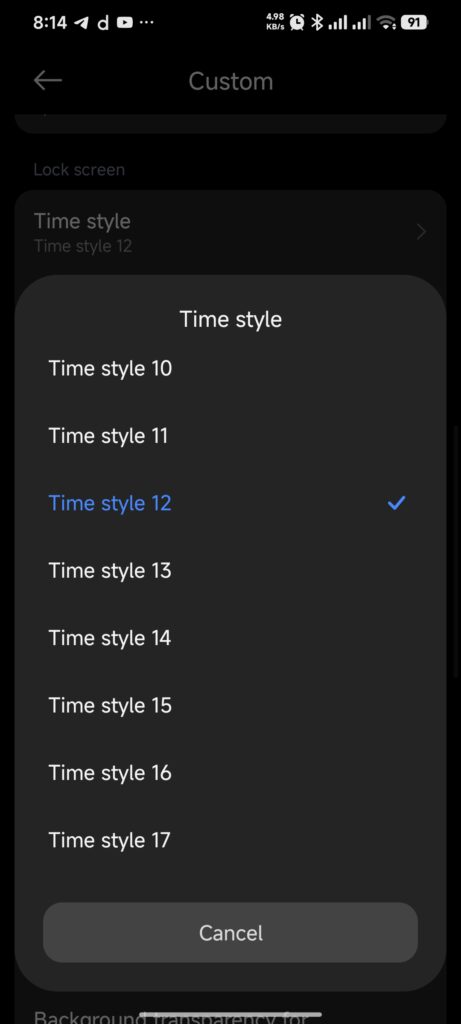
The next field, Set date formats, changes how the date is written. The displayed pattern includes EEEE and MM/dd, commonly used for the full weekday name and month/day. Copy the original entry before editing it so you can restore it if the result looks wrong.
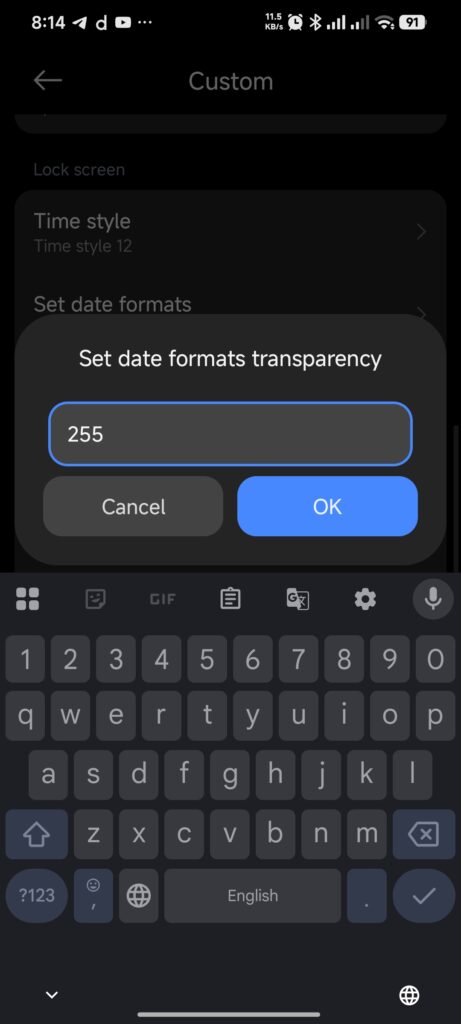
Set date formats transparency has a range of 0–255. My screenshot shows 255, although the menu lists 220 as the default. Adjust it gradually and check the smaller date text against your chosen background.
Give the hours and minutes different colors
The red-and-white clock in my setup is a useful example of why separate color controls matter. To work on those two parts, open time hours color and time minutes color.
The menu accepts hexadecimal color values. White is #ffffff, black is #000000, and red is #ff0000. Use the format shown in the field and check the result on the lock screen after changing it.
There are also entries called Vertical time point color, date/weather color, and Day and Life color. Keep those labels in mind when looking for a particular setting. Their visible effect can depend on the clock style you’ve chosen.
I’d choose the wallpaper before fine-tuning these colors. In my blue setup, the background has bright streaks through the middle. White text has less contrast there than it does near the darker edges.
Adjust notification readability
Find Background transparency for Notifications etc. Its value is 220 in my screenshot, which is also the listed default. The allowed range is 0–255.
Start from 220, make a small change and look at the screen with a notification present. Check the message underneath the notification title too; the title can be readable while the smaller line is hard to make out. If the change makes it worse, return to the previous value.
The menu calls this a background setting. If you still can’t read the notification comfortably, try a darker wallpaper behind the card. There’s no reason to change the entire clock layout to fix that one area.
Choose camera shortcuts and bottom controls
The lower half of the Custom menu contains controls you might want to change after settling on the clock and wallpaper.
Camera gesture and face-recognition icon
Enable left swipe camera controls the camera gesture. Show bottom Camera icon is a separate switch for the visible shortcut. Check both if you want to remove the camera shortcut from your layout.
The note under Face recognition icon display is quite specific: switching it off hides the icon without turning off face recognition. Use your phone’s security settings if you want to change face unlock itself.
Bottom bar and time-setting button
In Bottom tip, Show bottom bar controls whether the bar is visible. Customize bottom bar color sets its color, while bottom button color is listed separately for the buttons.
The menu describes a double-tap shortcut in the bottom-bar area for entering customization. It also has a switch called Turn on the Time setting button at the bottom, with a note about double-tapping that button to change the lock screen time display. Keep the controls visible until you know their positions in your chosen style.
Replace the unlock prompt
My screenshot shows Slide up to unlock in Custom prompt text. Open that field to replace the wording, then use Customize prompt text color if the text needs a different color.
For a layout with less text at the bottom, turn off Show bottom prompt text. Hiding or rewriting the prompt doesn’t change the phone’s security settings.
Fix settings that do not apply
The theme includes a note for models where customization doesn’t take effect. Its suggested order is to make your changes, reapply the theme without locking the screen first, and then check the result.
1. Make the change in Custom.
2. Return to Themes while the phone is still unlocked.
3. Reapply V2.
4. Lock and wake the phone to inspect the screen.
This is the fix described in the menu, rather than a guarantee for every model. If you mix theme components, check that V2 is still selected under Lock style afterward.
To restore the original lock screen, return to My account > Lock style, select Default and apply it.
Troubleshooting Hyper X Life V2
The theme is missing from search
Search for the full name, Hyper X Life V2. If it doesn’t appear, check whether the listing is offered for your device and Themes app region. A link from a theme article can help identify the package, but it doesn’t guarantee that your store will offer it.
The icons changed but the old lock screen stayed
Open My account > Lock style. If the check mark is still on Default or another theme, select V2 and apply that component. Applying an icon pack alone won’t select its lock screen.
The screen looks different from the preview
Look at the part that differs. For a different clock, check Time style. For a different background, open wallpaper style and its image fields. If only the home screen looks different, compare the widgets and launcher grid.
Some of the preview’s appearance may also depend on the software version. Matching the theme name doesn’t always reproduce every part of another phone’s setup.
Text overlaps or is hard to read
For a date or notification that blends into the wallpaper, change the relevant color or background setting. If elements actually overlap, reapply the affected component. Switch back to Default if the overlap remains.
A pictured clock is missing from the widget picker
A lock screen clock and a home screen widget are separate things. Time style changes the lock screen. For a home screen clock, check the widget picker; the one pictured in a setup may come from a separate app.
Frequently asked questions
Where is the Hyper X Life V2 Customise button?
It’s at the bottom of the Lock style page. Open Themes, tap My account and choose Lock style. Select V2, then look beneath the previews for Customise.
Can I keep my current icons?
Yes, where separate components are supported. Apply V2 under Lock style and leave your existing icon pack selected.
Why did my lock screen wallpaper turn black?
Check whether custom wallpaper is enabled without an image. The theme warns about this in its menu. Choose an image for the selected style, or switch back to a wallpaper that already works.
Does the face-recognition switch disable face unlock?
No. That switch hides the theme’s face-recognition icon. The note underneath says face recognition stays enabled.
Do I need to download the theme again after changing a setting?
The menu’s suggested fix is to reapply the installed theme before locking the phone. It doesn’t ask you to download the package again.
What should I do if there is no MTZ Import option?
Use the Themes store listing if it’s available for your phone. The MTZ steps in this article require native import support; they don’t cover third-party installers.
Finish by checking the lock screen
Before you leave the settings, wake the phone with a notification showing. Read the date, the message text and the prompt at the bottom. That quick check is more useful than judging the clock on an empty screen.
For the rest of my setup, including the home screen icons and widget spacing, see the full Hyper X Life V2 review.
About the author: Bijay is a blogger based in Nepal and the writer behind HyperXLife v2 Theme. This tutorial uses his month of V2 use on a Redmi Note 14 5G Global ROM and screenshots of the theme’s settings. It is an independent guide.