 Bijay
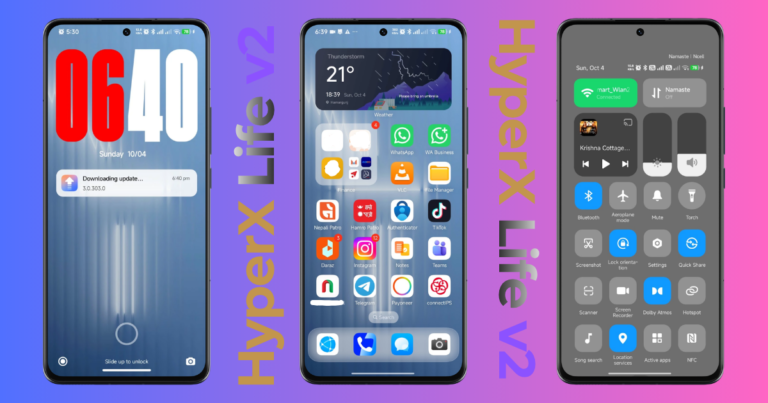
I’ve been using the Hyper X Life V2 theme for Xiaomi on my Redmi Note 14 5G Global for about a month. In my setup, the huge red-and-white lock screen clock is the first thing you notice. Rounded icons, translucent folders and a blue wallpaper carry the look onto the home screen.
If your phone still runs MIUI, V2 offers a way to try a HyperOS-inspired design through the Themes app. My own experience comes from a Redmi running the Global ROM; the published listings also describe MIUI support, but availability and individual components can differ on your phone.
This is a visual change. Applying V2 does not install HyperOS, add operating-system features or make a phone faster. I haven’t measured any battery or performance improvement, so those aren’t reasons I would recommend it.
Below, I explain what my screenshots show, where to find the correct V2 listing and what to check before applying it. For the full setup process, follow my guide to installing, applying and customizing Hyper X Life V2.
What is Hyper X Life V2?
Hyper X Life V2 is a customization theme credited to Md jibon in the Hyper X Life V2 listing on MIUI Themer. This theme features redesigned icons, wallpapers, a lock screen, status bar styling and Always-on Display customization.
The appeal is the coordinated appearance. Instead of choosing a separate wallpaper, icon pack and lock screen design, you can start with one package and adjust the components your phone supports.
For MIUI users, this offers a way to try a HyperOS-inspired look while keeping their existing software.
Hyper X Life V2 at a glance
The MIUI Themez compatibility directory identifies support for both MIUI and HyperOS. Check the listing available through your own Themes app, because individual components may behave differently across devices and software builds.
Hyper X Life V2 features: what to expect
HyperOS-style lock screen
The lock screen is the part of V2 that stands out most in my setup. Its tall clock fills much of the upper half, with the date beneath it and a rounded notification card farther down.
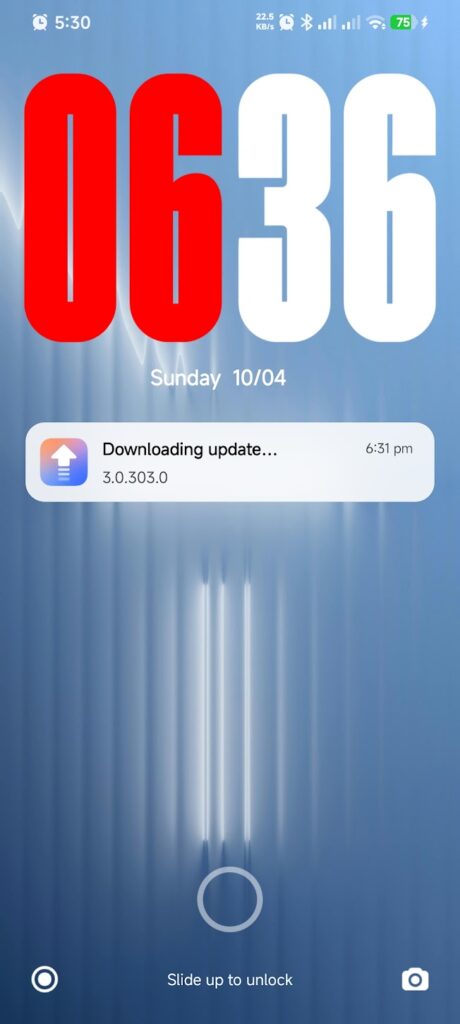
The large digits are easy to pick out in my screenshot. Smaller notification text deserves more attention, especially if you replace the blue background with a bright photo. Check an actual notification after choosing your wallpaper.
The screenshot above shows my lock screen layout: the date sits below the large clock, and the notification card has its own space underneath.
Clock styling and home screen widgets
Clock styling is part of the theme’s appeal, but the available references do not provide a complete, verified catalogue of V2 widgets.
After applying the theme, open your phone’s widget picker to see which options are available. A clock visible in a theme preview may belong to the lock screen rather than being a separate home screen widget.
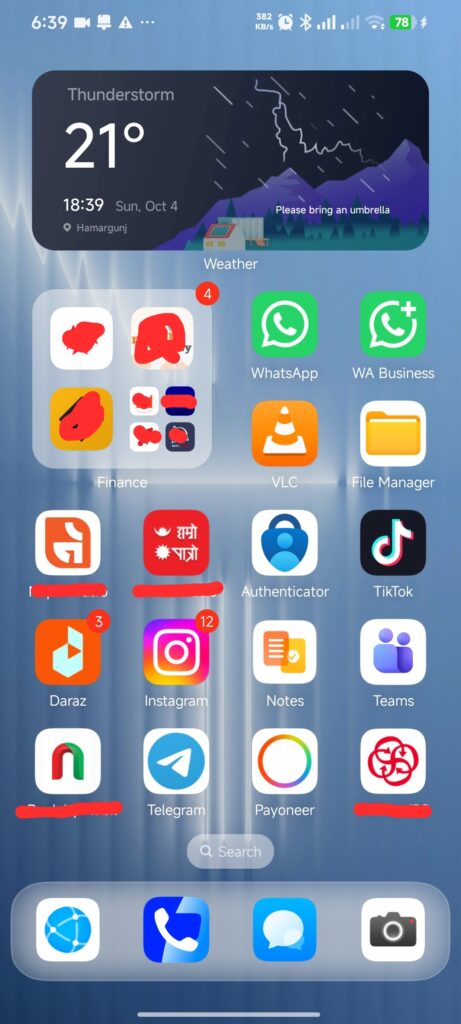
Start with one clock widget and a simple app layout. This makes it easier to judge whether the clock fits comfortably without pushing frequently used apps onto another screen.
Redesigned app icons
In my home screen and app-drawer screenshots, the icons have rounded backgrounds, while apps such as WhatsApp, Instagram and TikTok keep familiar logos. That helps the new layout remain recognizable.
Icon coverage can vary. Check your own banking, messaging and work apps after applying the pack; a preview of Xiaomi’s system apps won’t show how every installed app is handled.
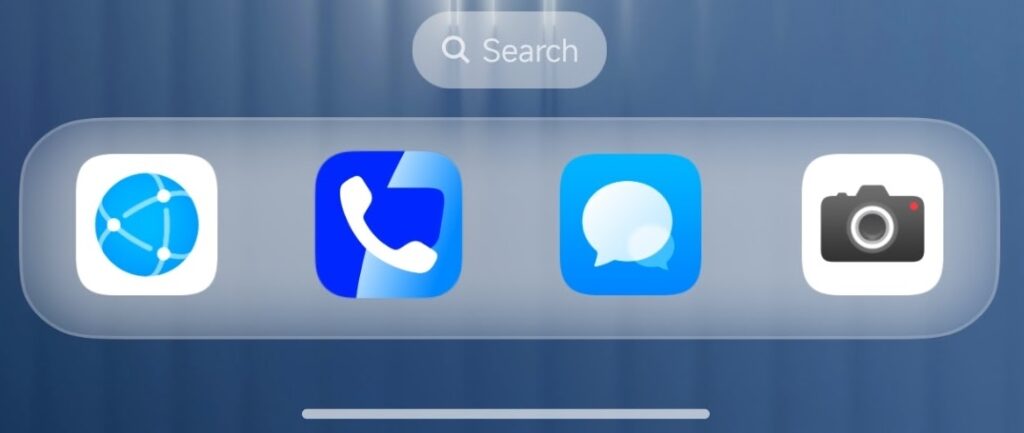
If your Themes app supports applying components separately, you can try the icons without committing to the complete theme.
Wallpapers and home screen appearance
Wallpaper choice affects how clearly the clock, app labels and icons stand out.
Begin with the theme’s included wallpaper, then compare it with your preferred background. If the screen feels crowded, try a simpler image or reduce the number of visible widgets.
My screenshots show both a large weather card and a smaller clock-and-weather arrangement. Leave room for app labels when placing widgets, and check the layout with your usual font size.
Status bar and Always-on Display
The V2 feature description includes status bar and Always-on Display styling.
Check these components on your own device. Pay attention to battery visibility, signal indicators and notification icons against different backgrounds.
Always-on Display customization also depends on what your phone and software support. A theme listing alone does not establish that every advertised element will appear on every model.
Is Hyper X Life V2 suitable for MIUI users?
Hyper X Life V2 is worth considering if you use MIUI and prefer a HyperOS-inspired appearance.
Its value is visual customization: a different lock screen, coordinated icons and a new wallpaper combination can make a familiar phone feel refreshed.
Keep expectations realistic. Applying the theme does not prove better gaming performance, faster app launches or improved battery life. Those claims would require controlled measurements.
For HyperOS users, the choice comes down to design preference and how well the available components work on their device.
Redmi Note 14 5G Global testing context
I’ve been using Hyper X Life V2 for about a month on my Redmi Note 14 5G (codename beryl), running the Global ROM, while participating in the Mi Pilot beta program. I’ve continued using it beyond the initial installation, so my experience comes from an ongoing setup rather than a quick preview.
That testing context matters when comparing results. My experience relates to this particular phone and software environment; it does not establish that every lock screen component, icon or widget will behave identically on other Xiaomi, Redmi or POCO devices.
I haven’t recorded battery or performance measurements, so I would not claim that the theme makes the phone faster or improves battery life. During my 30 days of daily use on the Redmi Note 14 5G, I noticed one specific layout quirk: while the status bar icons scale cleanly across both light and dark modes, notification card text on the lock screen can lose contrast if your background image is too bright in the center. For optimal readability, pair this theme with a background that has a dark midsection or slightly lower the brightness of the built-in wallpaper.
How to Download Hyper X Life V2 on Xiaomi, Redmi & POCO
Use the Xiaomi Themes app first
- Open Themes on your Xiaomi, Redmi or POCO phone.
- Search for Hyper X Life V2.
- Check the designer, preview images and compatibility information.
- Review the displayed price or download conditions.
- Download the theme if it is available.
- Tap Apply, then inspect the lock screen and home screen.
If the theme does not appear in search, consult the V2 download and installation reference. Confirm that the package is V2 before downloading.
How to Install Hyper X Life V2 via MTZ File
The reference pages also provide an MTZ download option. Whether you can import that file depends on your ROM and Themes app.
If your app includes an Import option, use it to select the downloaded MTZ file and apply the imported theme. If the option is missing, those instructions do not establish a supported installation method for your setup.
Keep your previous theme available so you can restore it if a component does not display correctly.
How to customize the lock screen
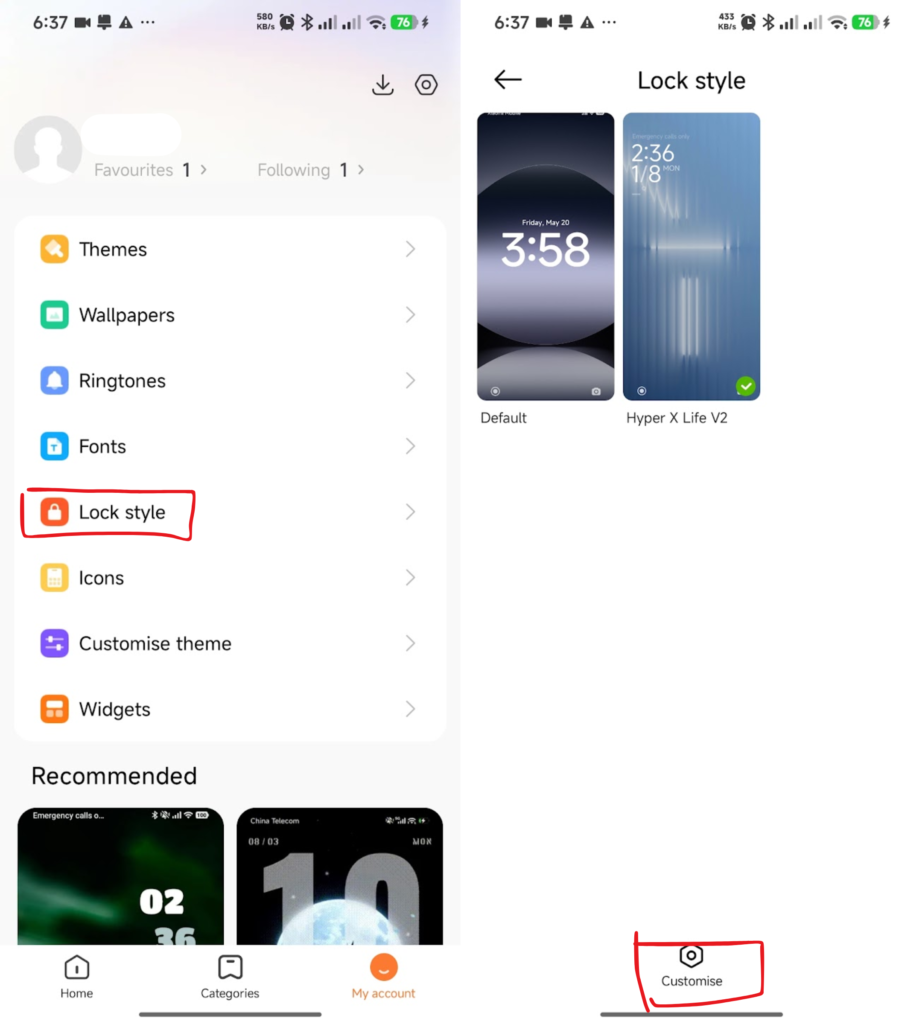
Open Themes > My account > Lock style, select Hyper X Life V2, then tap Customise at the bottom. This is the route shown in my screenshots. The Custom menu contains wallpaper, clock, date, color and shortcut settings. Menu names can differ between Themes app versions.
Pro Tip: If you only like the Hyper X Life V2 lock screen, open the Themes app, navigate to Profile > Customize Theme, and apply only the Lock Style component while retaining your stock HyperOS icon pack.
Common problems and what to check
The theme does not appear in search
Check the spelling, your Themes app region and availability for your device. Search availability can differ, so an absent result does not necessarily mean the name is wrong.
Icons changed, but the lock screen did not
Review the selected theme components. Your previous lock screen may still be applied even though the icons have changed.
Text or interface elements overlap
Restore the affected component, reapply the theme and check again. If the problem continues, return that component to your previous theme.
A clock widget is missing
Open the widget picker and check the available options. A clock shown in a preview does not establish that an identical home screen widget is included for every device.
The theme looks different from the preview
Compare the package version, wallpaper, selected components and display settings. Those differences can affect the final appearance.
Hyper X Life V1 vs V2: Size and Feature Comparison
Check the version when searching for a Hyper X Life theme for Xiaomi.
The original Hyper X Life listing describes an approximately 11.5 MB package. The V2 specifications list approximately 33.9 MB.
Package size can help distinguish the releases, but check the theme name, designer and preview together. Do not use the older release’s specifications as V2 specifications.
Frequently asked questions
Is Hyper X Life V2 free?
The referenced V2 listings describe the theme as free. Check the current price and download conditions in your Xiaomi Themes app before installing it.
Does it work on Xiaomi, Redmi and POCO phones?
The V2 listing names Xiaomi, Redmi and POCO phones. Availability and individual theme components depend on your device, ROM and software version, so check the listing in your Themes app.
Are HyperX Life V2 and Hyper X Life V2 different themes?
This guide uses Hyper X Life V2, the spelling in the referenced listings. If you search for HyperX Life V2 without spaces, confirm the result by checking the designer, Md jibon, and the preview images.
Does the theme turn MIUI into HyperOS?
No. Hyper X Life V2 changes supported visual elements. It does not install HyperOS or add its underlying operating-system features.
Will it improve battery life or performance?
There are no verified battery or performance measurements in this review. Choose the theme for its appearance; do not assume that applying it will improve battery life, gaming performance or app launch speed.
Is Hyper X Life V2 worth trying?
Hyper X Life V2 is a reasonable option if you want a HyperOS-inspired visual refresh on a compatible Xiaomi, Redmi or POCO phone.
Its appeal is strongest when the design works with your everyday habits: a readable clock, recognizable icons and enough space for the widgets you actually use.
Check the correct V2 listing, apply the components you want and assess the result on your own device. Keep the parts that improve your experience and restore any component that makes the interface harder to use.